
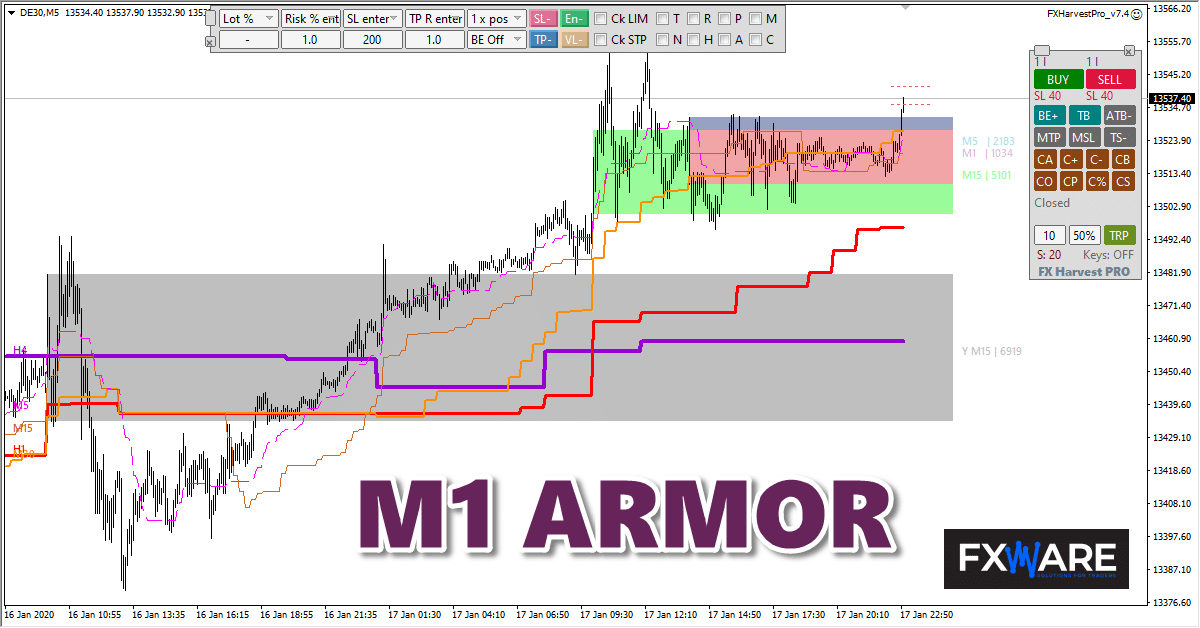
Three tools for quickly checking direction, levels and volume zones. M1 Armor combines M1 Auto UHVA, M1 MTF Kijun and Kijun Scanner to facilitate the assessment of market trends across multiple instruments and timeframes.
What does M1 Armor contain?
M1 Auto UHVA
It plots the zones of highest volume for selected timeframes, including M1, M5 and M15. It can display zones from the current day and the previous day. By default, it uses tick volume, but it can optionally work with real volume data provided by ClusterDelta Premium.
M1 MTF Kijun
It plots Kijun lines from higher timeframes – from M5 to W1 – on the current chart. This allows you to compare short-term price movements with the broader context without having to constantly switch between charts.
Kijun Scanner
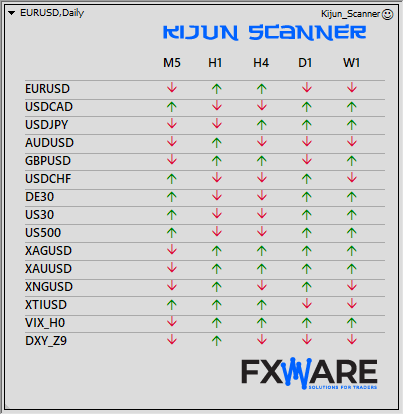
It displays, in a single panel, the price’s position relative to the Kijun line for multiple symbols and timeframes. The Kijun Scanner works exclusively on REAL accounts.
How do I get started with the software package?
- Launch the Kijun Scanner on a separate chart and select the symbols you wish to monitor.
- Open the instrument you’re interested in directly from the panel.
- Add the M1 MTF Kijun to view levels from higher timeframes.
- Add M1 Auto UHVA and compare these levels with the volume zones.
If you don’t need the whole system, you can use each component separately.
Requirements and compliance
M1 Armor is available for MetaTrader 4 and MetaTrader 5. To run the package, you will need a valid licence and a file FXW_M1_ARMOR.key. Tick volume does not require any additional service. Actual volume is optional and requires access to ClusterDelta Premium. The restriction to REAL accounts applies to the Kijun Scanner.
Frequently Asked Questions
Can I open a chart directly from the scanner?
Yes. Once the relevant option has been enabled, clicking in the panel opens the symbol’s chart and can switch it to the selected time frame.
Does the scanner have to run on a separate chart?
No, but a separate window is more convenient. Kijun Scanner converts the chart into a panel displaying a list of symbols and timeframes.
What does the message mean? Loading history...?
M1 MTF Kijun retrieves the historical data required to display lines from higher timeframes. Once the data has been loaded, the message disappears and the lines appear on the chart.
Build your own circuit using the M1 Armor
Go to the product page to view the current M1 Armor package offer.